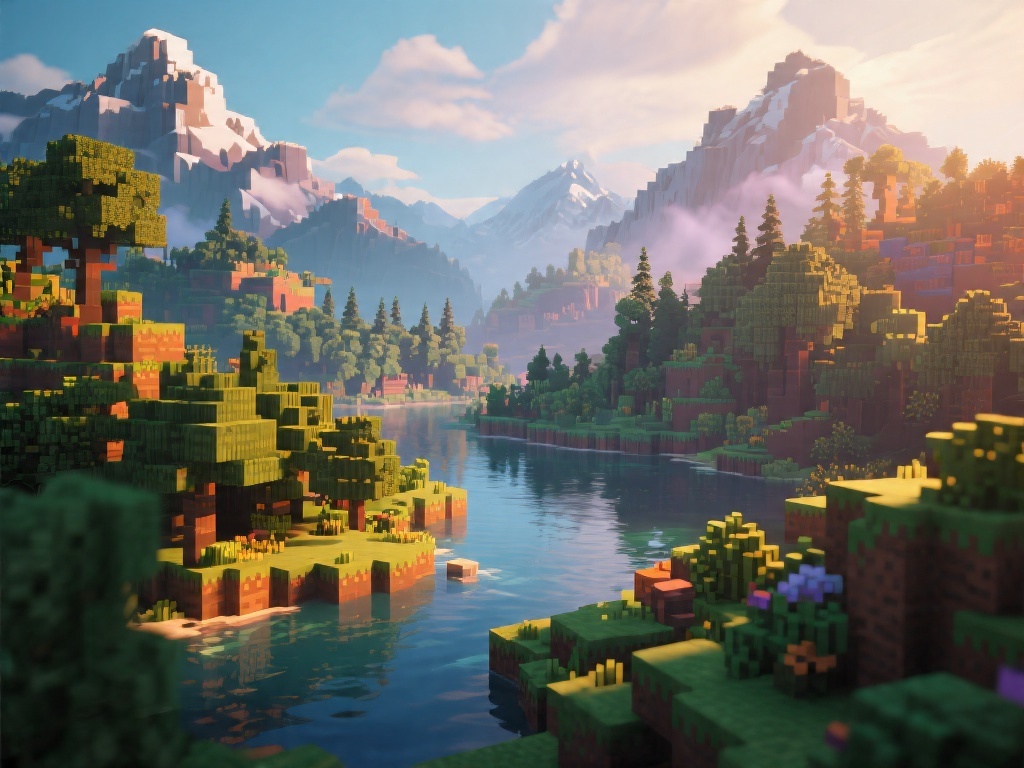
Introduction to Minecraft Shaders
If you're a Minecraft enthusiast looking to elevate your gameplay experience, installing shaders is a fantastic way to do so. Shaders are modifications that change the appearance of your Minecraft world, bringing it to life with realistic lighting, shadows, and textures. In this guide, we'll walk you through the process of installing shaders in Minecraft.
Step-by-Step Guide to Install Shaders in Minecraft
Before we dive into the installation process, make sure you have the following:
- Minecraft Java Edition
- ShaderMod
- Shaders for Minecraft
1. Download and Install ShaderMod:
- Visit the ShaderMod website.
- Download the latest version of ShaderMod for Minecraft.
- Run the installer and follow the on-screen instructions to complete the installation.
2. Download a Shader Pack:
- Choose a shader pack that suits your taste. Websites like Shaderpacks.com offer a variety of options.
- Download the shader pack file (usually a .zip file).
3. Extract the Shader Pack:
- Right-click on the downloaded shader pack and select "Extract All."
- Choose a folder where you want to store the extracted files.
4. Launch Minecraft with ShaderMod:
- Open the Minecraft launcher.
- Click on "Options."
- Scroll down and find the "Resource Packs" section.
- Click on "Open Resource Packs Folder."
- Move the extracted shader pack folder into the Minecraft resource packs folder.
5. Select the Shader Pack:
- Go back to the Minecraft launcher.
- Click on "Resource Packs."
- Select the shader pack you just added to the resource packs folder.
- Click "Play."
6. Adjust Settings:
- Once in the game, go to the "Options" menu.
- Navigate to the "Video Settings" section.
- Adjust the shader settings to your preference.
Common Issues and Solutions
While installing shaders, you may encounter a few issues. Here are some common problems and their solutions:
- Shaders Not Loading: Ensure that your graphics card supports the shaders and that your Minecraft version is compatible with the shader pack.
- Low Performance: If the shaders are causing lag, try lowering the shader settings or selecting a less demanding shader pack.
- Crashes: If Minecraft crashes, make sure that all your drivers are up to date, and consider trying a different shader pack.
Conclusion
Installing shaders in Minecraft can dramatically enhance your gaming experience. By following our comprehensive guide, you can easily install shaders and adjust settings to your liking. Whether you're a seasoned Minecraft player or a beginner, shaders can add a new dimension to your adventures. Happy gaming!