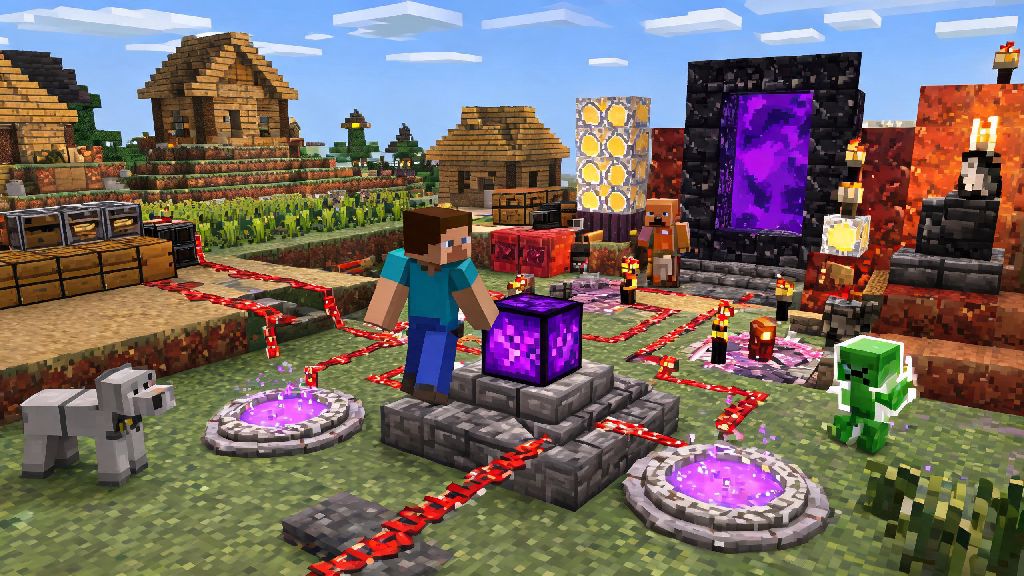
If you’ve ever wanted to skip hours of grinding for resources, spawn custom mobs, or build automated teleport networks across your Minecraft world, you’ve probably heard of command blocks. I first started using them 6 years ago when I wanted to cut down travel time between my survival base and a remote nether fortress, and I was shocked at how easy they were to set up even with zero prior redstone or coding experience. These powerful blocks let you run in-game commands with a single redstone trigger, opening up hundreds of custom gameplay options you won’t get with standard blocks. This guide will walk you through how to make a command block in Minecraft, plus practical ways to use it once you have it set up, no advanced skills required.
How to Make a Command Block in Minecraft: Core Requirements for All Editions
First, it’s important to note that command blocks can’t be crafted with standard survival recipes, and they won’t spawn naturally in any world biome. The only way to get one is to use a give command, and there’s one non-negotiable rule for that: you must have cheat permissions enabled on your world or server to pull it off. If you’re playing a single-player world, you can toggle cheats on in your world settings before you load in, no extra steps needed.
If you’re already in a survival world where you didn’t enable cheats initially, there’s a quick workaround. Open your world to LAN, select “enable cheats” in the LAN settings, run the give command, then close the LAN session to turn cheats back off for regular survival play. For multiplayer servers, you’ll need to be set as an operator by the server admin to access and use command blocks.
Once cheats are enabled, open your chat window and type /give @p command_block, then hit enter. The command block will pop directly into the first open slot in your inventory. If you get an error message, 9 times out of 10 it’s because cheats aren’t properly enabled, or you don’t have the right permissions on your server. Double check those settings first before trying again.
Key Settings to Adjust Before Using Your Command Block
Place your command block anywhere in your world, then right click it to open the settings menu. You’ll see a handful of options that might look confusing at first, but you only need to adjust a few of them for most basic use cases. Always set the block’s command type to match your use case before you enter any commands, to avoid unexpected behavior.
The three main command types are impulse, chain, and repeat. Impulse blocks run their command one single time every time they get a redstone signal, which is perfect for one-off actions like teleporting or giving items. Chain blocks run their command only after the block connected before it in the chain runs successfully, which is great for stringing multiple commands together in sequence. Repeat blocks run their command 20 times per second as long as they’re powered, which works for ongoing effects like spawning mobs or keeping a specific area loaded.
You can also toggle between conditional and unconditional mode, and turn chat feedback on or off. Conditional blocks only run if the previous command in a sequence worked, while unconditional blocks run no matter what. I always turn off chat feedback for repeat blocks, because getting 20 messages a second clogs up my chat window fast when I’m testing automated systems. For chain blocks, make sure the small arrow on the side of the block points to the next block in the sequence, otherwise the chain won’t run at all.
3 Easy Beginner Command Block Builds to Try First
You don’t have to write long, complex commands to get real value out of a command block. These three simple builds take less than two minutes each to set up, and you can tweak them to fit almost any playstyle, from creative building to survival quality of life improvements.
All of these commands work for both Java and Bedrock editions, though you may need to adjust minor syntax for older game versions. Always test your command in chat first before entering it into the block, so you can catch typos or syntax errors before you waste time hooking up redstone wiring. I usually run the command once in chat to confirm it works, then copy it directly into the command block menu to avoid mistakes.
Common Command Block Mistakes to Avoid
Command blocks are pretty forgiving, but there are a handful of common mistakes that new users make that can lead to broken builds, lag, or even accidental griefing on multiplayer servers. Don't leave repeat command blocks running 24/7 without a purpose first and foremost. Since they run 20 times a second, even a handful of unused repeat blocks can lag your single-player world or crash a small multiplayer server if left on for too long. Always add a lever or switch so you can turn them off when you don’t need them.
Another common mistake is mixing up relative and fixed coordinates. Relative coordinates use the ~ symbol, and reference the position of the command block itself, while fixed coordinates reference a specific spot in your world. I’ve made this mistake before: I set a teleport command to ~ ~10 ~ thinking it would take me to my mountain base, but it just teleported me 10 blocks above the command block instead, directly into a patch of cacti. Double check your coordinate type before saving your command.
If you’re playing on a multiplayer server, always check with the admin before placing command blocks, even if you have operator permissions. Many servers restrict command block use to prevent accidental griefing, like spawning hundreds of mobs in the spawn area or teleporting all players into the void. You should also avoid using the @a target selector (which targets every player on the server) unless you’re 100% sure your command is correct, because a single typo can impact every person online at once.
Command blocks are one of the most versatile tools in Minecraft, and once you know how to make a command block in Minecraft, you can customize your gameplay to fit almost any playstyle, from creative building to custom adventure map design. You don’t need to be a redstone expert or coder to use them, either — start small with the simple builds we shared, and work your way up to more complex systems as you get comfortable. The only limit is your imagination, so go grab a command block and start testing out ideas today.