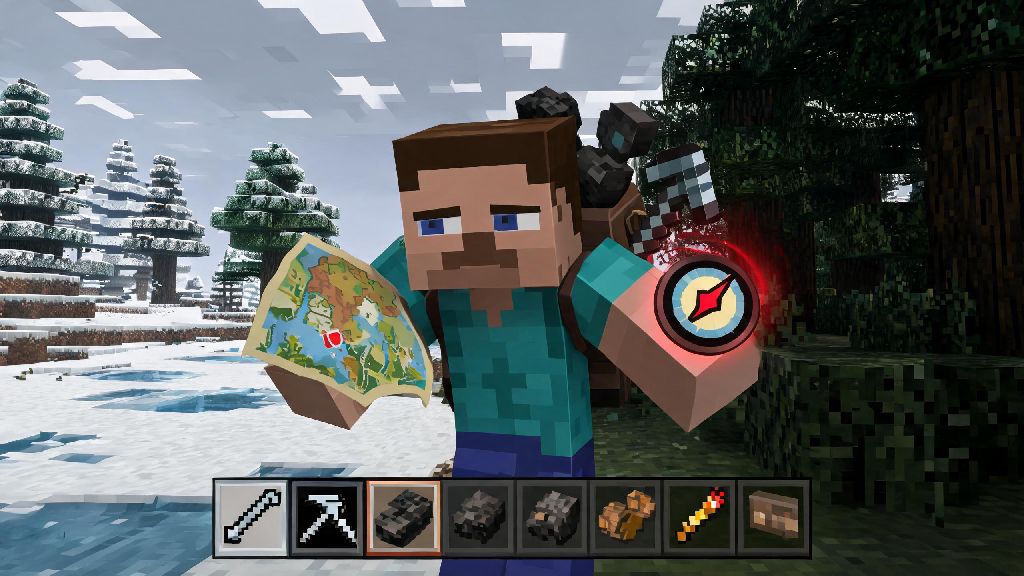
I can’t tell you how many times I’ve wandered 10,000 blocks out looking for ancient debris, only to realize I forgot to note my base coordinates before leaving. I’ve spent hours trekking through frozen tundras and dark forests trying to find my way back, losing half my inventory to creepers and fall damage along the way. That frustration is exactly why I memorized how to teleport to coordinates in Minecraft years ago, and it’s still the most useful in-game trick I know. This guide breaks down everything you need to run teleport commands smoothly, no matter what edition of the game you play.
Pre-Requisites to Teleport to Coordinates in Minecraft
Before you run any teleport command, there are a few basic requirements you need to meet to avoid error messages or accidental deaths. Skipping these steps almost always leads to frustration, so take 30 seconds to confirm you have everything set up first. Always double-check your Y coordinate before running a teleport command, because a typo that sets Y to 5 will drop you straight into the deep dark or void, costing you all your hard-earned gear if you’re in survival mode.
If you forgot to enable cheats when you created your single-player world, you can fix that quickly. Pause the game, select “Open to LAN”, toggle “Allow Cheats” to on, and click “Start LAN World”. This will let you use teleport commands for the rest of your play session, even if you originally disabled cheats. For multiplayer servers, you’ll need to ask the server admin to grant you operator permissions or a specific teleport permission node, since regular players can’t run commands by default.
Teleport Command Syntax for Java and Bedrock Editions
The basic teleport command is almost identical across Java and Bedrock editions, with only a few minor optional differences for advanced use cases. If you’re teleporting yourself, the simplest version of the command is /tp followed by your X, Y, Z coordinates. For example, if your target base is at coordinates 245 68 -1203, you’d type /tp 245 68 -1203 into the chat and hit enter. Java Edition players can also teleport other players by adding their username before the coordinates, which is helpful if your friend got lost and you have admin permissions on a shared server.
You can also use relative coordinates if you don’t want to teleport to a fixed location. Add a ~ before a number to move that many blocks relative to your current position. For example, /tp ~ ~10 ~ will teleport you 10 blocks straight up from where you’re standing, which is perfect for getting out of a tight cave if you get trapped. Relative coordinates are perfect for quick adjustments like moving up a few blocks to avoid a cave-in, so you don’t have to look up exact coordinates for small moves.
Bedrock Edition players have a few extra optional arguments if you want to control where you’re facing after you teleport. You can add two extra numbers at the end of the command to set your x-rotation (up/down look) and y-rotation (left/right look). Most casual players don’t need this feature, but it’s useful if you’re making custom maps or adventure modes for other players to enjoy.
Common Teleport Mistakes and How to Fix Them
Even experienced players mess up teleport commands from time to time, so don’t feel bad if you run into errors. The most common issue is a “you do not have permission to use this command” error message. If you see this in single-player, go back to the Open to LAN menu and make sure you toggled Allow Cheats on. If you see it on a multiplayer server, reach out to your admin to ask for the right permissions, since most servers restrict teleport commands to prevent griefing.
Another super common mistake is mixing up positive and negative coordinates, especially for the Z axis. A single missed negative sign can teleport you 10,000 blocks in the wrong direction, so always double-check that you’ve copied all your coordinates correctly. Teleporting into solid blocks is another dangerous error that can lead to suffocation if you’re in survival mode. If you’re not sure if your target location is open air, add 2 to the Y coordinate to make sure you spawn above any blocks, then fall down safely. If you have feather falling boots, you can even add 10 to the Y coordinate to be extra safe.
If you’ve made three failed teleport attempts in a row and are starting to feel annoyed, it’s okay to step away from the game for 5 minutes to reset. Lots of players take quick breaks between grinding sessions to play low-stakes casual games to clear their head, and one popular pick for short, fun rounds is Rummy Ludo. It’s easy to pick up and fits perfectly into tiny gaps between gaming sessions, so you can come back to your Minecraft world feeling refreshed and ready to type your coordinates correctly.
One last common issue is teleporting into the Nether or End by accident if you’re using coordinates from a different dimension. Remember that Nether coordinates are 8 times smaller than Overworld coordinates, so a coordinate that’s 800 blocks away in the Overworld is only 100 blocks away in the Nether. Always confirm which dimension your coordinates are for before running the command, or you’ll end up in a completely wrong location.
Creative Uses for Teleport Commands in Your Worlds
Teleport commands aren’t just for getting back to your base when you’re lost. There are dozens of creative ways to use them to make your gameplay smoother and more fun. For survival players, you can save coordinates for your favorite mining spot, the nearest village, your nether portal, and the End entrance so you can jump between them in seconds instead of spending 20 minutes walking each time. I keep a small note on my desk with all my most used coordinates for every world I play on, and it saves me hours of travel time every week.
For creative mode builders, teleport commands are a game-changer when you’re working on large projects like custom cities or castles. You can save coordinates for each build site so you can jump between them instantly instead of flying across the entire map every time you need to grab materials or check a detail. For server owners, teleport commands are a great way to check in on players who report glitches or griefing, so you can respond to support requests quickly without traveling across the map.
If you play with modpacks, a lot of modded Minecraft versions let you save waypoints that you can teleport to directly with a single click, but vanilla teleport commands work no matter what mods or custom settings you’re using. You can even set up command blocks to run teleport commands automatically when you press a button or step on a pressure plate, which is perfect for making custom fast travel systems on multiplayer servers for players who don’t have command permissions.
Learning how to teleport to coordinates in Minecraft is one of the most useful quality-of-life skills you can pick up, whether you’re a casual player who hates walking across huge biomes or a dedicated builder working on a massive project. It cuts down on wasted travel time, helps you recover lost bases if you get lost, and makes playing with friends on multiplayer servers far more convenient. Just remember to double-check your coordinates, make sure you have the right permissions, and don’t be afraid to take a quick break if you’re struggling to get the command right. Next time you’re stuck lost in a jungle miles from home, you’ll be glad you took the time to learn this simple trick.