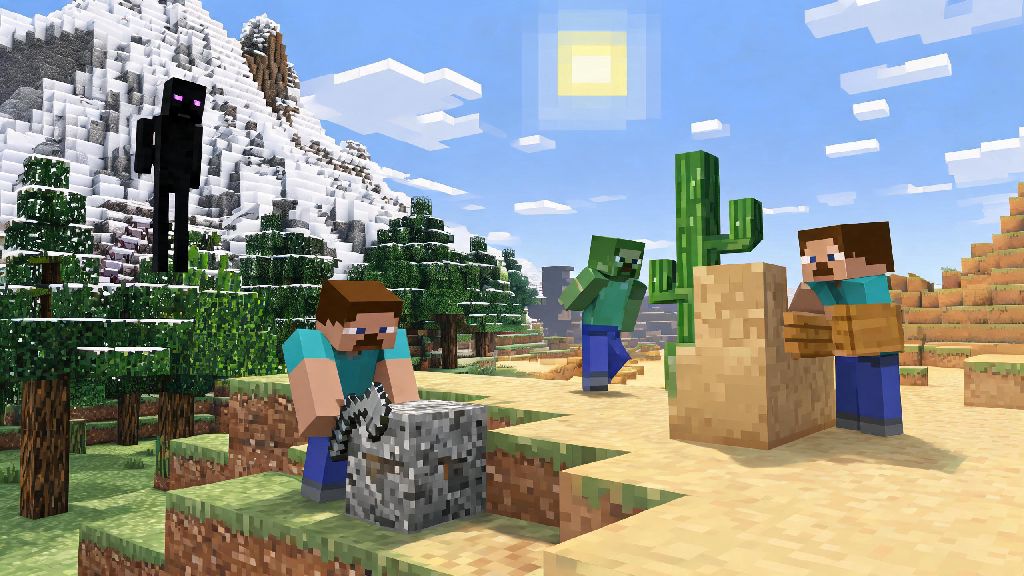
If you’ve spent hours building the same cobblestone base and fighting the same creepers, you’ve probably wondered how to mod Minecraft to shake up your playthrough. I’ve been modding the game for over 8 years, and I still get giddy when I find a new mod that adds biomes I never knew I needed, or quality of life features that make mining 10x less tedious. The good news is modding isn’t just for tech experts — even total beginners can get set up in under 30 minutes if you follow the right steps, and avoid the common mistakes that lead to corrupted save files or unexpected crashes.
How to Mod Minecraft Safely: First Steps Before You Download Any Files
The very first thing you need to do before touching any mod files is back up all your existing Minecraft worlds first. I once forgot to back up a 6-month survival world when I was testing a new magic mod, and lost the entire thing when the game corrupted my save. I’ve never skipped that step since, and neither should you. You can copy your world files to a separate folder on your desktop or cloud storage for extra safety, so even if something goes very wrong during mod setup, you won’t lose hundreds of hours of build time.
Next, pick a mod-compatible launcher that matches your game version. The three most common free mod loaders are Forge, Fabric, and Quilt, and each works best for different types of mods. Forge is the oldest option, and it’s the best choice if you want to play large, established mod packs with hundreds of custom items and biomes. Fabric is a lighter, faster loader that works better for small quality of life mods and newer, experimental content. Quilt is a newer fork of Fabric that offers better cross-mod compatibility for many recent releases. You don’t need to pay for any loader or launcher, so avoid any sites that ask for payment for basic mod access.
Where to Find Safe, Legitimate Mods for Your Playthrough
The biggest risk for new modders is downloading malware or adware disguised as Minecraft mods from sketchy sites. Only download mods from trusted, community-vetted platforms that scan every upload for malicious content. The two most widely used safe platforms are CurseForge and Modrinth, both of which show user reviews, download counts, and update history for every mod, so you can confirm a mod is active and well-supported before you download it.
There are a few clear red flags that mean a mod source is not safe, and you should leave the site immediately if you see any of these:
I made this mistake back when I first started modding, downloaded a "free custom cape mod" from a random site, and ended up having to reset my Minecraft password and run three full malware scans on my laptop. It’s not worth the risk, even if the mod sounds too good to be true. Most of these sketchy sites rely on new modders not knowing what legitimate sources look like, so sticking to the well-known platforms removes 99% of the risk.
How to Install and Test Mods Without Crashing Your Game
Once you have your mod loader set up, you’ll see a new "mods" folder in your main Minecraft game directory. All you have to do to install most mods is drop the downloaded .jar mod file directly into this folder. That sounds simple, but there’s one critical rule to follow to avoid constant crashes: Always match your mod version to your mod loader and game version. A mod made for Minecraft 1.20.1 won’t work with 1.21, even if it’s just a small version difference, and that’s the #1 cause of game crashes for new modders.
Don’t dump 20+ mods into your folder all at once when you’re first starting out. I used to do this, and I’d spend hours troubleshooting instead of playing. Instead, install one mod at a time, and launch the game after each addition to make sure it runs properly. That way if something breaks, you know exactly which mod is causing the issue, instead of having to sort through all of them one by one. Most modern mod launchers also have built-in compatibility checkers that will flag conflicting mods before you launch the game, so you can fix issues before they cause a crash.
If you’re planning to play modded Minecraft with friends, make sure everyone is using the exact same mod loader, game version, and mod versions. Even one small discrepancy will stop you from being able to join the same server, and it can cause crashes for everyone connected if you do manage to get in. Most launchers let you export your mod pack as a single file to send to friends, so you don’t have to coordinate every individual mod download.
Beginner-Friendly First Mods to Try for Your First Playthrough
You don’t have to jump straight into huge mod packs that completely overhaul the game for your first modded playthrough. Start small with quality of life mods that fix small annoyances in vanilla Minecraft, without changing the core gameplay you already know and love. Just Enough Items (JEI) is the best starter mod for all new modders, and it’s compatible with almost every mod pack out there. It lets you look up the crafting recipe for any item in the game, including modded items, so you don’t have to alt-tab to look up guides every five minutes.
Other great beginner mods include Inventory Tweaks, which automatically sorts your messy inventory and replaces broken tools for you mid-build, or Simple Voice Chat, which adds in-game proximity voice chat if you play with friends, so you don’t have to use Discord to talk to people nearby. If you want to add a little extra content without overwhelming yourself, try mods that add new decorative blocks, new crops for farming, or cute passive mobs before you move on to more complex mods that add new bosses or combat mechanics.
If you do want to try a pre-made mod pack, most launchers have one-click install options for popular packs like SkyFactory or All the Mods, so you don’t have to install each mod individually. Stick to packs marked "beginner-friendly" for your first run, as they’re designed to be less overwhelming and have fewer compatibility issues for new players.
At the end of the day, learning how to mod Minecraft is all about having fun and making the game work for your play style. You don’t need to be a coder or tech expert to get started, as long as you follow basic safety steps and take your time setting everything up. Don’t get frustrated if you run into crashes or compatibility issues at first — even experienced modders run into those problems all the time. Once you get the hang of it, you’ll be able to create a completely custom Minecraft experience that feels made just for you.