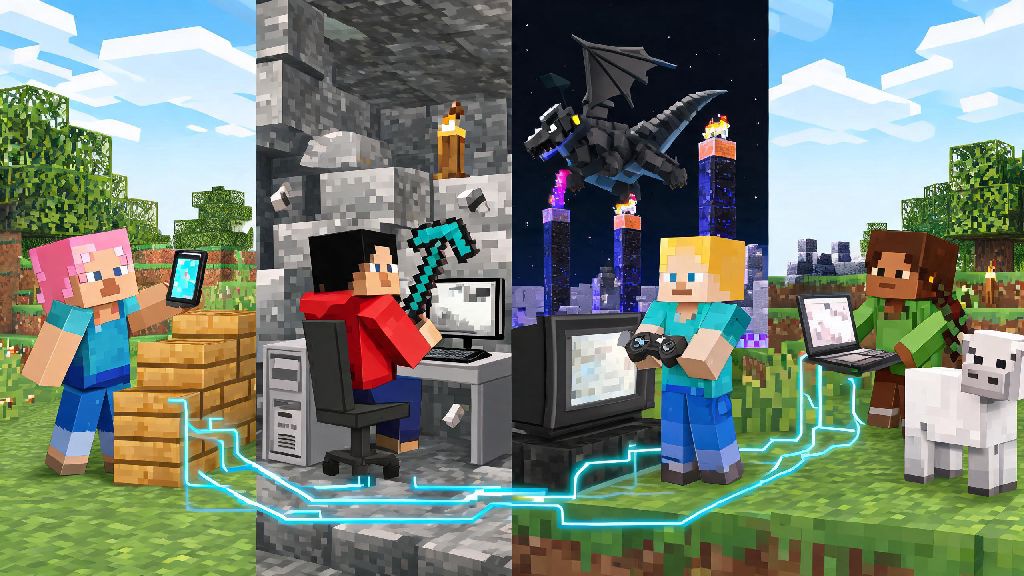
There’s nothing quite like logging into Minecraft to find your friend left a silly statue outside your survival base, or teaming up to take down the Ender Dragon for the first time together. But if you’ve ever spent 30 minutes fumbling with settings just to get everyone in the same world, you know how frustrating it can be to figure out how to play minecraft with friends when you’re on different devices or don’t want to mess with complicated setup. We’ve tested every method out there across console, PC, mobile, and Switch, so you can skip the tech headaches and get straight to building, exploring, or pranking each other as soon as possible.
Prep First: Confirm Your Minecraft Edition and Compatibility
Before you try any multiplayer method, the first thing you need to check is which edition of Minecraft everyone in your group is using. Minecraft: Java Edition only works with other Java players, no exceptions, while Minecraft: Bedrock Edition (the version on Xbox, PlayStation, Switch, mobile, and Windows 10/11 store) supports crossplay across all Bedrock devices. If half your group has Java and half has Bedrock, you’ll need to use a special cross-edition server to connect, otherwise you won’t be able to join the same world.
You should also make sure everyone has updated their game to the latest version, even small patch differences can block you from joining a friend’s session. If someone is running an older version to use specific mods, make sure everyone in the group matches that version to avoid issues. It only takes 30 seconds to check your game version in the main menu, and it will save you hours of troubleshooting later.
How to Play Minecraft with Friends Using Free, Low-Effort Methods
You don’t have to spend a dime to play with friends, especially if you’re all in the same physical space or only play for a few hours at a time. These methods take less than two minutes to set up, no technical skills required:
These free methods are ideal for casual play sessions, but they have clear limits. LAN play only works if you’re in the same location, Bedrock invite sessions shut down when the host leaves, and public servers often have lag, strict rules, or unwanted players joining your group. If you want a more reliable experience, you’ll want to look at paid options instead.
Paid Options for Persistent, Lag-Free Multiplayer Sessions
If you play regularly with the same group, or want a world that stays online even when no one is logged in, paid options are worth every penny. They also let you add mods, custom plugins, and adjust rules to fit exactly what your group wants to play. Minecraft Realms is the official paid hosting option from Mojang, and it’s the easiest to set up for most people. A Bedrock Realm costs around $3.99 a month for 2 players, or $7.99 for up to 10 players, and a Java Realm is slightly cheaper for the same player limit. You don’t have to worry about updates, server maintenance, or port forwarding, you just pay the fee, create your world, and invite your friends. It’s perfect for people who don’t want to mess with any technical settings.
For groups that want more control, third-party Minecraft server hosting is a better pick. You can get plans that support up to 100 players, add hundreds of mods, customize every game rule, and even run multiple worlds on the same server. Prices start at around $2 a month for small 4-player servers, and go up depending on how many players and mods you want to add. The only downside is you’ll need to spend 10-15 minutes setting up the server initially, and you’ll have to handle updates and minor troubleshooting yourself if you don’t pay for a managed plan. That said, the flexibility you get is unbeatable if you want to run a custom modded server or a public community space for your friend group.
Common Multiplayer Issues and Simple Fixes to Try First
Even if you follow all the steps perfectly, you might run into a few snags when trying to connect with friends. Most of these issues have super simple fixes that take less than a minute to test, so you don’t have to waste time searching forums for answers. If you can’t see a friend’s world in your multiplayer menu, first make sure you’re both on the exact same game version and edition. Even a 0.0.1 patch difference will stop you from connecting, and Java players can never join Bedrock worlds without a special server.
If you’re on the same version and still can’t connect, check your internet connection first. If you’re using mobile data, make sure you have Minecraft set to allow mobile play in your settings, and if you’re on a school or work Wi-Fi network, the network might block Minecraft’s multiplayer ports by default. If you’re hosting a LAN world and others can’t join, double check that all devices are connected to the same Wi-Fi network, and that the host’s firewall isn’t blocking Minecraft connections. Most of the time, turning your router off and back on again will fix any connection issues you’re having.
For people joining third-party servers, if you get a “mod mismatch” error, that means you have mods installed that the server doesn’t support, or you’re missing mods that the server requires. Double check the server’s mod list and make sure your installed mods match exactly, including mod versions, to fix this error quickly. If you get banned from a server for no reason, reach out to the server admin to appeal, but keep in mind public servers have their own rules you have to follow.
At the end of the day, the right way to play with your friends depends on how often you play, how many people are in your group, and what kind of experience you want. You don’t need a fancy paid server if you only play once a month with two friends, and free LAN play works perfectly if you’re all hanging out at the same house. No matter what setup you pick, knowing how to play minecraft with friends lets you turn a fun solo game into a shared experience you’ll remember for years. Don’t be afraid to test a few different methods to see what works best for your group, and don’t forget to leave a few pranks for your friends to find when they log in next.